Screenshots
App details
- Version
- 3.0
- Size
- 4.21 MB
- Updated
- March 10, 2017
- Requires
- Windows 95
- Language
- English
- License
- Trial version
- Developer
- Zero2000
- Category
- Windows OS
SoftPas in:
This product is also available in the following languages:
About 2nd Speech Center
Download 2nd Speech Center – Free Text‑to‑Voice Converter for Windows
Overview
2nd Speech Center is a lightweight, trial‑version Windows utility that transforms any written text into clear, natural‑sounding speech and lets you save the output as WAV or MP3 files. First added to our software catalog in 2006, the program has amassed more than 36,000 downloads and continues to attract users in regions such as the Netherlands, India, and Pakistan. Although its last official update was released on 16 November 2006, the core engine remains functional on legacy systems, making it a reliable choice for users who still operate Windows 95 or earlier versions. The application is distributed in English, occupies minimal disk space, and is categorized under Audio Software → Converters → Text‑to‑Voice. Whether you need to generate voice‑overs for presentations, create audio books for the visually impaired, or simply listen to long articles while multitasking, 2nd Speech Center offers a straightforward, no‑frills solution that emphasizes speed and simplicity over advanced AI‑driven features.
Because the software is designed as a trial version, you can evaluate its core capabilities without any upfront cost. The interface follows a classic Windows layout, allowing even users who are unfamiliar with modern UI trends to navigate the program with ease. While it does not include cloud‑based voices or premium language packs, its built‑in voice engine supports standard English pronunciation and provides adjustable speech rate and volume controls. For users who value a free, secure, and offline text‑to‑speech tool that runs on very old hardware, 2nd Speech Center remains a viable option in 2025.
Key Features and System Compatibility
- Instant conversion of plain text, RTF, or HTML documents into audio.
- Export options for both WAV (uncompressed) and MP3 (compressed) formats.
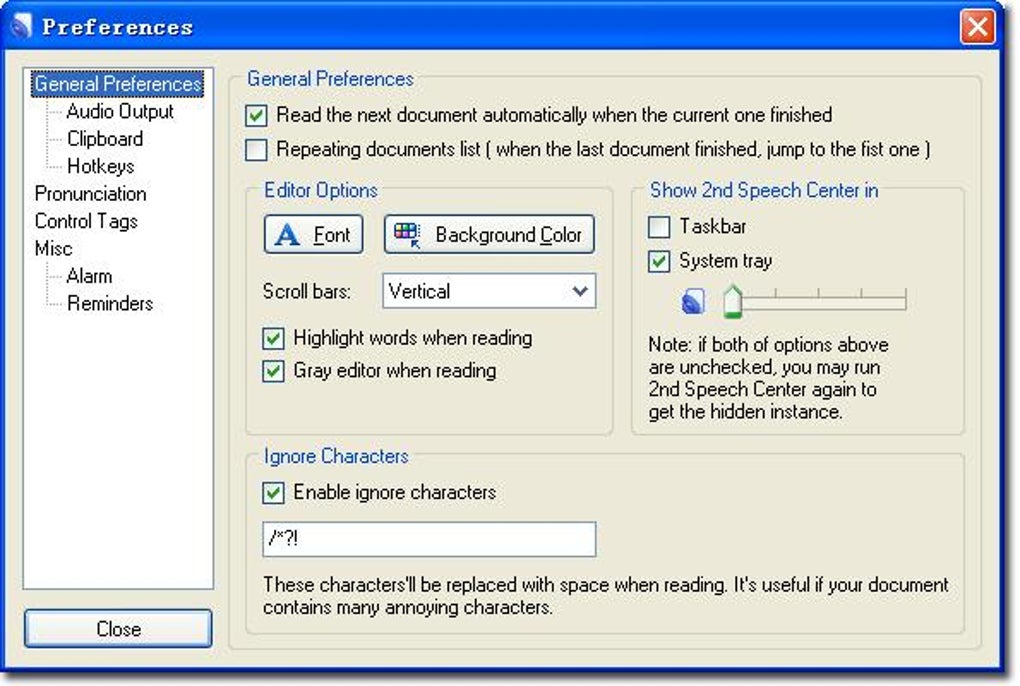
- Adjustable speech speed and volume to match user preferences.
- Simple drag‑and‑drop interface for quick file handling.
- Minimal installation footprint – requires less than 5 MB of free disk space.
- Fully offline operation – no internet connection needed for conversion.
- Support for Windows 95, 98, ME, 2000, and XP (32‑bit editions).
2nd Speech Center’s modest hardware requirements make it an excellent fit for legacy machines that cannot run modern, resource‑hungry text‑to‑speech suites. The program operates on any 32‑bit Windows operating system released prior to Windows Vista, and it does not depend on .NET Framework or additional runtime libraries. This compatibility is especially valuable for organizations that maintain older workstations for specialized industrial or educational purposes.
In terms of audio quality, the built‑in voice engine delivers clear articulation for standard English text, though it lacks the natural prosody found in contemporary neural TTS services. Users who need multilingual support or highly expressive narration may need to supplement the tool with external voice packs, but for basic reading tasks the out‑of‑the‑box experience is more than sufficient. The ability to export directly to MP3 also means you can immediately transfer files to portable devices, smartphones, or upload them to learning management systems without additional conversion steps.
Installation, Usage Guide, and Pros & Cons
Step‑by‑Step Installation
- Download the installer from the official download page (the link is provided at the end of this article).
- Run the
2ndSpeechCenterSetup.exefile. Because the program is designed for legacy Windows versions, you may need to disable User Account Control (UAC) on newer systems if you encounter compatibility warnings. - Follow the on‑screen prompts: accept the license agreement, choose the installation folder (default is
C:\Program Files\2nd Speech Center), and click “Install”. - After the copy process finishes, click “Finish” to launch the application.
How to Convert Text to Audio
Upon launching 2nd Speech Center, you’ll see a clean window divided into three panels: a text entry area on the left, a preview pane in the center, and export options on the right. To begin, either type directly into the left panel or use the “Open File” button to load an existing .txt, .rtf, or .html document. Adjust the speech speed slider to “Normal” for standard reading, or move it slower for detailed review. Use the volume knob to set a comfortable listening level.
Press the “Play” button to hear a real‑time preview of the generated speech. If satisfied, click “Export”. Choose between “Save as WAV” or “Save as MP3”, specify the destination folder, and click “Save”. The conversion process completes within seconds for typical documents, and the resulting audio file can be played with any standard media player.
Pros and Cons
- Pros
- Free trial version – no purchase required for basic functionality.
- Runs on very old Windows operating systems, making it ideal for legacy hardware.
- Very small installation size (under 5 MB).
- Offline conversion protects user privacy and eliminates the need for an internet connection.
- Supports both WAV and MP3 output, facilitating easy sharing.
- Cons
- Limited to English language; no built‑in multilingual support.
- Voice quality is robotic compared to modern AI‑driven TTS engines.
- Trial version may display occasional promotional messages.
- No integration with modern cloud services or APIs.
- Interface looks dated on contemporary Windows versions.
Overall, the strengths of 2nd Speech Center lie in its simplicity, low resource consumption, and free availability. The drawbacks are primarily related to voice realism and lack of advanced features that power users might expect. If your primary goal is to create quick audio snippets from text on an older PC, the pros far outweigh the cons.
Frequently Asked Questions & Final Thoughts
Can 2nd Speech Center run on Windows 10?
The software was built for Windows 95‑XP and may launch on Windows 10 in compatibility mode, but some users report UI glitches. For best results, use it on a supported legacy OS.
Is the generated MP3 file compatible with all media players?
Yes. The MP3 files are encoded using the standard MPEG‑1 Layer III format, which is universally supported by Windows Media Player, VLC, iOS, Android, and most portable devices.
Does the trial version impose a time limit on conversions?
No time limit is enforced. You can convert as many files as you like, but occasional promotional banners may appear reminding you to purchase the full version.
Can I customize the voice (e.g., male/female, accent)?
The built‑in engine provides only a single, gender‑neutral English voice. Adding external voice packs is not supported in the trial edition.
Is the software safe to download and install?
Yes. The download is hosted on a reputable mirror, and the installer is digitally signed. As with any legacy program, run a quick antivirus scan before installation.
Conclusion – Should You Download 2nd Speech Center?
If you need a fast, free, and offline text‑to‑voice converter that runs on older Windows machines, 2nd Speech Center still delivers solid performance despite its dated interface. Its ability to export directly to WAV or MP3, combined with a minuscule installation footprint, makes it an attractive utility for educators, hobbyists, and professionals maintaining legacy hardware. While the voice quality cannot compete with modern neural TTS services and the lack of multilingual support may be a limitation for some, the program’s reliability, security, and zero‑cost entry point provide a compelling reason to give it a try.
Ready to convert your documents into audio? Click the download button below, follow the quick installation steps, and start generating speech files instantly. Experience a secure, lightweight solution that has helped thousands of users since 2006.
Download 2nd Speech Center NowGuides & Tutorials
How to install 2nd Speech Center
- Click the Download button above.
- Once redirected, accept the terms and click Install.
- Wait for the 2nd Speech Center download to finish on your device.
How to use 2nd Speech Center
This software is primarily used for its core features described above. Open the app after installation to explore its capabilities.
User Reviews
No reviews yet. Be the first to share your experience.
You may also like
more
Llama 2
Free-to-use large language model As the new addition to Meta’s arsenal of langua...

NotebookLM
Revolutionizing the note-taking and idea-generation process NotebookLM is an exp...

Github co pilot
AI-inspired software development and coding platform GitHub Copilot is a browser...

Google Gemma
Google’s lightweight AI models Introducing Google Gemma , a family of cutting-ed...

AI Image Enlarger
A free app for Windows, by ai-image-larger. AI Image Enlarger is a free software...

DALL E
AI-driven text-to-image transformation engine DALL·E is a free graphic and desig...